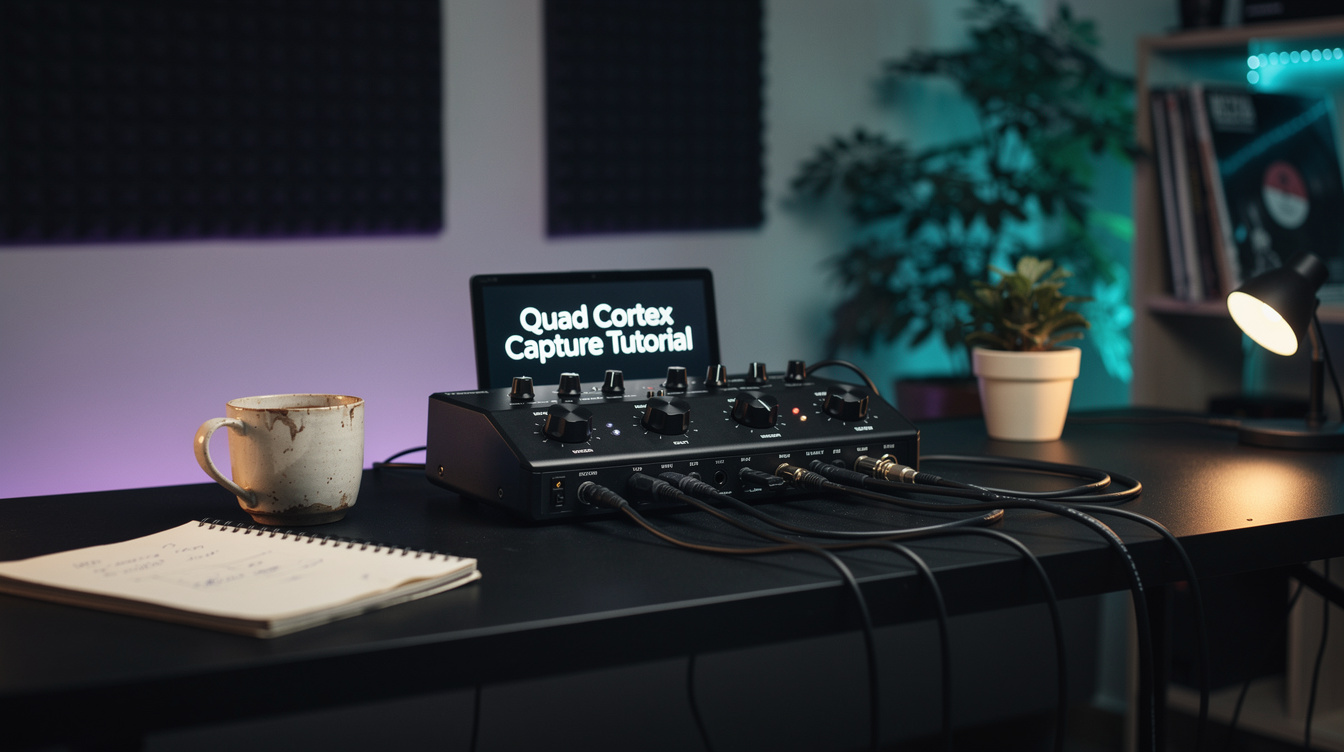
Start Here: The 20-Minute Capture Workflow:
- Connect your amp's speaker out to a reactive load/attenuator; connect load's line out to QC Capture input
- On QC: Device Settings → Capture → name the capture
- Set input level (signal should hit around -12 to -6 dBFS during normal playing)
- Play the capture tone sweep when prompted (QC plays a test signal through your amp automatically)
- Wait for processing (30–90 seconds depending on model)
- Play through the capture and compare to your amp The detailed walkthrough is below.
Why Capture Your Own Amp?
The Quad Cortex ships with Neural DSP's factory amp models (mathematically accurate recreations of specific amps at specific settings). These are useful. But Neural Captures are something different.
A Neural Capture is a machine learning model of a specific amp at specific settings, captured through the actual signal path you're using. When you capture your own amp, the result reflects:
- Your specific amp unit (individual tube sets, component drift, unique character)
- Your speaker and cabinet
- Your microphone placement and room characteristics (if capturing with a mic)
- The exact settings on the amp's controls at capture time
The factory Cortex Cloud captures are made from well-maintained amps in controlled studio environments. They're often excellent. But a capture of your amp (your JCM800 with its original tubes and that particular midrange bark you've dialed in over three years) is yours in a way no commercial capture can replicate.
It's also the best backup you have. If your amp fails the night before a gig, your capture plays your gig.
What You Need Before You Start
Required Equipment
1. A reactive load or attenuator with line-level output
This is non-negotiable for safe amp capturing. Your amp's speaker output is designed to drive a speaker load. Running it without a proper load will damage your amp's output transformer.
Recommended options:
- Two Notes Torpedo Captor: affordable, reliable, passive reactive load with line out
- Universal Audio OX: excellent frequency response, more expensive
- Suhr Reactive Load IR: built-in IR processing, flexible output options
- Boss Waza Tube Amp Expander: all-in-one with attenuation and line out
If you're capturing a combo amp with the speaker connected and also using a mic, you can mic the speaker directly without a load box; the speaker IS your load. But you'll need an audio interface for the mic signal, and the QC Capture input wants line level, not mic level.
2. A cable connecting your reactive load's line out to the QC
A standard instrument or line-level cable. The Quad Cortex capture input accepts both instrument-level and line-level signals.
3. Your amp at stable operating temperature
Let it warm up for at least 15 minutes before capturing. Tubes behave differently cold vs. warmed up, and you want to capture the amp as it plays in real use.
Optional but Recommended
- A microphone positioned on the speaker (if you want room acoustics in the capture)
- An audio interface for the mic signal into the QC
- A reference recording of your amp to compare against after capture
Step 1: Physical Setup
Load Box Configuration
Connect your amp's speaker output to the reactive load's speaker input. Then run the load's line output to the Quad Cortex.
Amp head speaker out
→ Reactive load speaker input
→ Reactive load line out (instrument or line level)
→ Quad Cortex Input 3 or 4 (the capture inputs)
The QC has four inputs. Inputs 1 and 2 are the standard guitar inputs; Inputs 3 and 4 have a higher input impedance and are better suited for line-level signals. For capturing, use Input 3 or 4.
Set your reactive load's output level control to approximately 50% as a starting point. You'll adjust based on the level reading in the Capture screen.
Amp Settings
Dial in the amp settings you want to capture before you open the Capture screen. The capture records the amp at these exact settings. Change the amp after capturing and you'll need a new capture.
Be intentional here. Are you capturing:
- A clean tone? Set the amp clean.
- A crunch tone? Set it to your medium-gain sweet spot.
- A high-gain lead tone? Set it there.
Each setting you want as a separate starting point requires a separate capture. Some players do multiple captures of the same amp (clean, crunch, and lead) and build a preset that chains the appropriate capture for each context.
Step 2: Entering Capture Mode
On the Quad Cortex:
- Swipe down from the top of the screen to access the Quick Settings menu
- Tap Capture
- You'll be prompted to name your capture. Do this now. Good naming convention:
[Amp Name] [Model Year] [Settings Summary]. Example:Marshall JCM800 2203 Med Gain - Select the capture type: Amp (the most common) vs. Pedal or Full Chain
For capturing an amp head through a load box: select Amp.
Step 3: Setting Input Level
The Capture screen shows an input meter. Your goal is to have the signal hitting approximately -12 to -6 dBFS during normal playing (not clipping, not too quiet).
Play your normal playing dynamics: chords, single notes, pick attack variations. The meter should peak around -12 to -6 without hitting the red.
If the signal is too hot: reduce the reactive load's output level, or reduce the amp's master volume.
If the signal is too quiet: increase the reactive load's output level.
Common mistake: Capturing at too-low a level produces a capture with more noise floor present in the result. Too high a level clips the QC's input and produces a harsh, unpleasant capture. The -12 to -6 range is well-established from the Neural DSP community's testing.
Step 4: Running the Capture
When your level is correct, tap Start Capture.
The Quad Cortex will now play a series of test tones through your amp automatically. You don't play anything during this phase. The QC sends a frequency sweep and transient series through the signal chain, and your amp reproduces those tones.
What you'll hear: A series of sweeping tones, pops, and test signals through your amp. This is normal. Don't adjust any controls. Don't bump the amp. Don't change the amp's settings. Let the process complete.
Duration: The standard capture takes approximately 30–90 seconds for tone generation. The QC then processes the recorded response to create the neural model. This takes an additional 30–60 seconds on the device.
A progress bar shows you where in the process you are.
Step 5: Reviewing the Capture
When processing completes, the QC immediately lets you audition the capture side-by-side with your direct signal.
This is the most important step and the one most players rush.
How to Evaluate a Capture
Play through the capture. Then play through your amp directly. Listen for:
-
Frequency balance: Does the capture have the same fundamental tonal character: same amount of low end, same midrange presence, same top end air?
-
Dynamic response: Does the capture respond to pick attack changes the way your amp does? Play lightly, then dig in. The capture should track your dynamics similarly.
-
Harmonic content: Does the capture's saturation character sound like your amp's saturation? This is the hardest element to evaluate quickly; your ear adapts.
-
Transient behavior: Does the attack of each note feel similar? Captures can sometimes reproduce the sustained sound well but feel slightly different on the initial pick attack.
When to Retry
If the capture sounds significantly different from the amp (duller, harsher, thinner), try:
- Recapturing with a slightly higher input level
- Checking your cable connections (a loose connection produces a degraded capture)
- Ensuring the amp had fully warmed up
- Verifying your reactive load is properly connected (an improperly loaded amp sounds different from a properly loaded one)
One capture is rarely the final answer. Most experienced QC users do 2–3 captures per session and pick the best one.
Step 6: Building a Preset Around the Capture
A capture is an amp replacement. Everything that happens before and after it in your signal chain works the same as with a factory amp model.
Recommended Preset Structure
[Input] → [Wah block] → [Drive/Boost block] → [Capture block] → [IR/Cab block] → [Modulation] → [Delay] → [Reverb] → [Output]
Capture block settings:
- The Capture block has Input Level and Output Level controls. Use these to match the capture's apparent loudness to your other presets.
- The Model parameter lets you select which capture is loaded. You can swap captures in and out of the same preset by changing the model.
IR/Cab selection: If you captured through a reactive load (no speaker and mic), you need to add a cab IR after the capture block. The capture is the amp only; it outputs a direct signal that needs speaker/cab coloration to sound natural.
If you captured through a live mic on a speaker cabinet, the capture may already have cab character in it. You can use it with or without an additional IR. Experiment with both.
Capture Quality: Variables That Matter
Room Temperature and Tube State
Tubes change character slightly with temperature, and with the age of the tube set. A freshly retubed amp sounds different from the same amp with a year of use. Your capture reflects the amp's state at capture time.
Reactive Load Quality
Different reactive load designs have different frequency response characteristics. Some are flatter; some have resonant peaks that color the captured signal. This isn't inherently bad (it's part of the character you're capturing), but it means captures made through different reactive loads sound different even from the same amp.
The Two Notes Torpedo Captor is a common reference point because it's widely used and its frequency response is well-documented. Captures made through a Captor will have a specific character that differs from captures made through an OX or a Suhr Reactive Load.
Microphone Captures vs. Load Box Captures
If you capture with a mic in front of a real speaker, you get:
- Speaker and cabinet coloration in the capture
- Room acoustics (if any)
- Microphone frequency response character
- Microphone placement effect
This is more variables, but it can produce captures that feel more realistic; you're capturing the whole sound system, not just the amp's electrical behavior.
The trade-off: mic captures are more complex to set up, and mic placement choices affect the result significantly.
Sharing and Storing Captures
Cortex Cloud
Neural DSP's Cortex Cloud lets you upload your captures and share them publicly or keep them private. Public captures can be downloaded by other QC users.
If you've captured something genuinely useful (a well-maintained vintage amp, a boutique unit that's hard to access), sharing it contributes to the community library. The same library you're pulling from for other people's captures.
To upload: navigate to the capture in your device's preset browser and select Upload to Cloud.
Local Backup
Sync your QC to Neural DSP's desktop app regularly. This backs up all presets, captures, and IR files locally. Losing a QC to hardware failure is recoverable if you've backed up; it's not if you haven't.
Troubleshooting Common Issues
Capture sounds thin and fizzy:
- Input level was likely too high during capture (clipping the input)
- Also check whether you've accidentally added a cab IR that doesn't suit the capture
- Try recapturing at a lower input level
Capture sounds dull and low energy:
- Input level was likely too low
- The reactive load output may be too attenuated
- Try capturing with more level from the load box
Capture doesn't respond to pick dynamics like the amp:
- This is the hardest limitation to fix; captures are good but not perfect on dynamic response
- Try engaging the High Fidelity capture mode if available in your firmware version (longer capture process, better dynamic resolution)
- Adjust the Input Level in the Capture block slightly; sometimes a small level change improves how the model tracks dynamics
Noise in the capture:
- Low input level during capture (more floor noise relative to signal)
- Try a noise reduction block before the capture in your preset
- Check your cable quality and connections
Frequently Asked Questions
Can I capture a pedal as well as an amp? Yes. The QC supports Pedal and Full Chain capture modes in addition to Amp mode. A pedal capture records the pedal's full frequency response and saturation character, useful for unusual or discontinued effects. Full chain captures the entire amp + pedal setup as one unit.
How many captures can I store on the QC? The Quad Cortex stores up to 50 captures in local memory. Additional captures can be stored in the cloud and downloaded as needed.
Can I use a QC capture in another modeler? No. Neural Captures use Neural DSP's proprietary format and run only on the Quad Cortex. They're not interchangeable with Helix IRs, Fractal presets, or other platforms.
Does the QC capture the amp at one specific volume? The capture reflects the amp at the gain and volume settings dialed in during capture. It doesn't dynamically replicate the amp's behavior at different master volumes; that's set at capture time.
How often should I recapture my amp? After significant amp changes: new tubes, major service, EQ changes. If you're capturing an amp as a backup for touring, recapture after each service. For general use, one well-made capture per amp configuration is typically stable for years.