The short version: Global EQ is a single EQ stage that sits at the very end of your modeler's signal chain, after every preset. It corrects the consistent coloration your monitoring environment imposes on every tone (too much low end from a monitor, too much treble from in-ears, a cabinet-too-mid bump from FRFR) without forcing you to fix the same problem on every preset. Use a low-frequency cut or boost (60–150 Hz) for room compensation, a low-mid adjustment (200–400 Hz) for monitor or headphone correction, and a high-frequency tilt (above 4 kHz) for in-ear or modeler-direct contexts. Most modelers store separate global EQ presets for studio, live, and headphone use. The setting takes ten minutes to find. It saves you from re-EQing every preset for the rest of your modeler ownership.
I have an HX Stomp in my bedroom. The Stomp lives on my desk, runs into a Focusrite Scarlett 4i4, and outputs to a pair of Yamaha HS8 monitors. Everything in my room (the foam panels, the bookshelf in the corner, my desk surface, the angle the monitors face) colors what I hear in a specific way. The room has a low-mid bump around 250 Hz. The monitors have a slight rolloff above 10 kHz that's flatter than my older speakers but still present.
For a long time I thought I was a bad preset designer. Every time I built a new tone it sounded a little muddy in the low mids, a little less bright than I wanted. I'd EQ each preset to compensate, and a week later I'd notice the same correction on the next preset, and I'd EQ that one too. I was making the same fix to every patch I built because the room and the monitors were doing the same thing to every patch.
The global EQ block fixed this in ten minutes. It corrects the room and the monitor in one stage that runs after every preset. Every patch I'd already built sounded better immediately. Every patch I built going forward needed less per-preset EQ work. This is the most useful single setting in any modeler I've owned and almost nobody talks about it.
This is what it does and how to set it.
What Global EQ Is
Global EQ is a single EQ stage that lives at the absolute end of your modeler's signal chain, after every preset, before the output to your speakers or interface. Whatever the active preset's blocks do, the global EQ runs on top.
| Modeler | Where global EQ lives | How many bands |
|---|---|---|
| Helix / HX Stomp | Global Settings → Global EQ | 4 bands (low cut, low shelf, mid parametric, high shelf) |
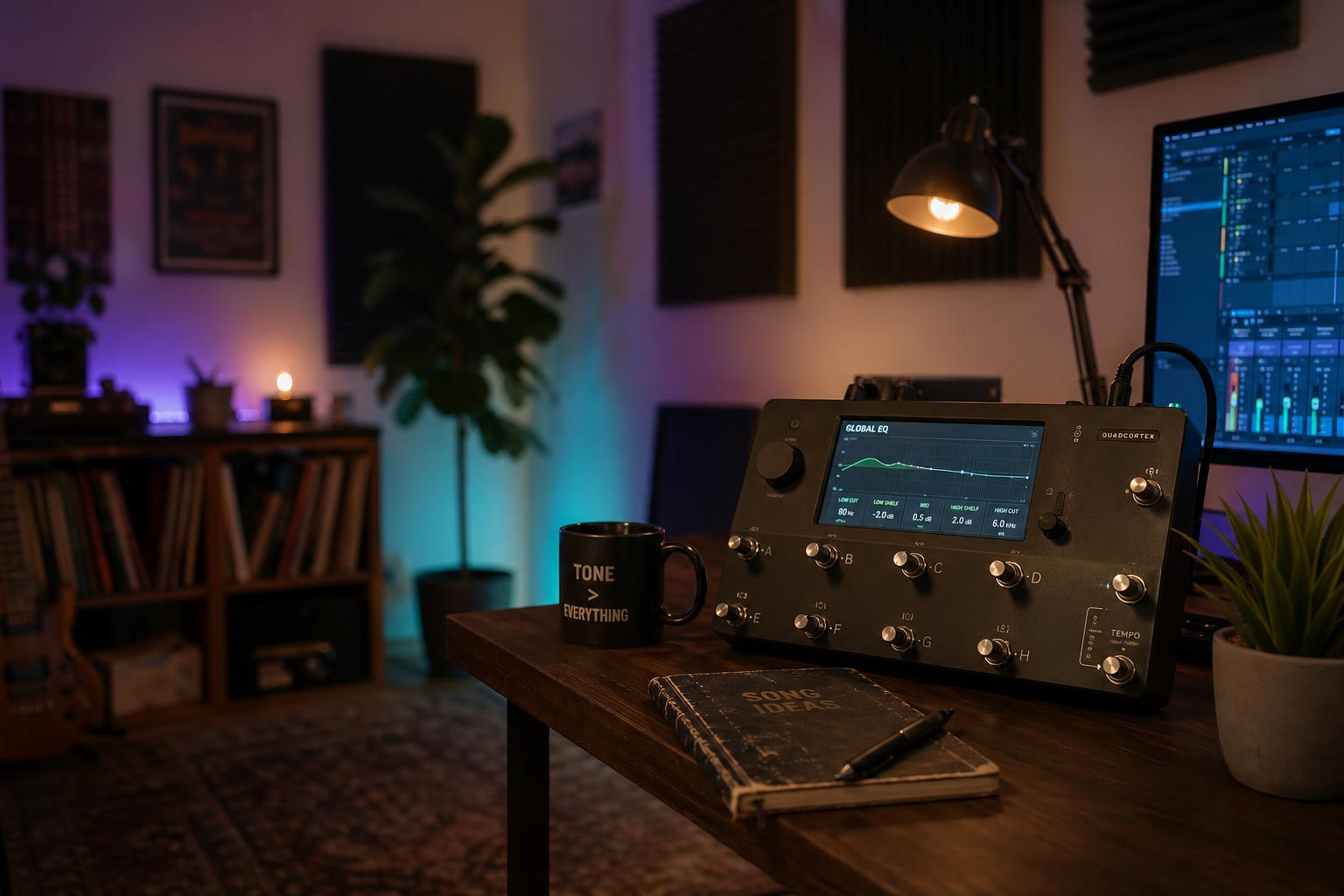
| Quad Cortex | Settings → Global EQ | 5 bands (high pass, low shelf, two parametric, high shelf) |
| Fractal Axe-FX III / FM3 / FM9 | I/O Menu → Output Global EQ | 8 bands per output, parametric |
| TONEX | TONEX Pedal: Global EQ | 3 bands (low/mid/high shelf) |
| Boss Katana / Cube modelers | None (these are amp simulators, not preset modelers; per-preset EQ only) | N/A |
The function is consistent across platforms even when the implementation varies. One EQ, applied to everything, after the preset has already finished its work.
What It's For (and What It Isn't)
Global EQ is for environmental correction: fixing the systematic coloration that every preset experiences because of where you're listening. It is not for making one preset sound different from another. That's per-preset EQ work and it should stay in the preset.
The way to think about it: every preset you build is heard through the same room, the same monitors (or headphones, or PA system), the same destination. If those colorations are consistent (the room always has the same 250 Hz bump, the monitors always have the same 12 kHz rolloff), they affect every preset identically. Fixing that coloration once at the global stage is more efficient than fixing it on every preset individually.
Global EQ is also reversible. If you switch from monitors to headphones, you switch the global EQ profile. The presets stay the same. The correction matches the new monitoring context.
What global EQ is not for:
- Making your high-gain preset different from your clean preset (per-preset EQ)
- Adding character to a specific amp model (that's the amp's tone stack)
- Dialing in a tone for one song (per-preset)
- Compensating for a single preset's specific problem (per-preset)
If you find yourself globally EQ-ing to fix one preset's issue, you're using the wrong tool. The fix belongs in the preset.
The Three Use Cases
Most modeler users need a different global EQ for each of three monitoring contexts. Most modelers store these as separate global EQ profiles you can recall.
Studio Monitor Profile
For monitoring through nearfield studio speakers in an untreated or lightly treated room. The most common adjustments:
- High-pass filter (low cut) at 50 Hz, 12 dB/octave slope. Removes subsonic content that doesn't help any guitar tone and can muddy low-end punch.
- Low-shelf cut of 1.5 to 3 dB at 100 Hz. Compensates for desk reflections and small-room low-end buildup.
- Parametric cut of 1.5 to 2.5 dB at 250-400 Hz, moderate Q. This is the universal "small room low-mid bump" frequency.
- High shelf flat or +0.5 dB above 6 kHz. Most studio monitors are accurate enough to need no high-frequency adjustment.
Settings will vary based on your specific room. If you have access to a measurement microphone and software like Room EQ Wizard (free), running a frequency sweep tells you exactly where your room peaks and dips. Without measurement, the values above are a starting point that's roughly correct for most home studios.
Headphone Profile
For monitoring through closed-back or open-back headphones. Headphones produce a different problem than monitors; there's no room, but the headphone's own frequency response curve is the coloration:
- High-pass filter at 30 Hz (most headphones don't reproduce sub-bass usefully anyway)
- Low-shelf flat or -1 dB at 80 Hz. Most headphones are slightly bass-heavy by design.
- Parametric cut at the headphone's specific peak. For Sony MDR-7506 the cut is at 8 kHz (-2 to -3 dB); for Sennheiser HD 280 Pro the cut is at 5 kHz; for Audio-Technica M50x the boost is at 50 Hz that you'll want to roll back.
- High-shelf cut of 1 to 2 dB above 10 kHz. Most closed-back headphones get fatiguing in the air range during long sessions.
Headphone manufacturers publish frequency response charts. If you know yours, target the peaks and dips with parametric cuts that flatten the response. The goal is a neutral monitoring experience where what you hear in the headphones is what gets exported to the file.
Live FRFR Profile
For monitoring through an FRFR speaker (or in-ears with a stage monitor mix). This profile usually needs the most adjustment because the live context introduces room acoustics, stage volume, and PA interaction:
- High-pass at 80 Hz, 12 dB/octave. Protects your low end from stage rumble and room boom.
- Low-shelf cut of 2 to 4 dB at 100-150 Hz. Most FRFR speakers in live rooms have boosted low end.
- Parametric cut of 2 to 4 dB at 250 Hz. Addresses venue room buildup.
- Parametric cut of 1 to 2 dB at 4 kHz. Most modeler tones get harsh in the upper-mid range when the FRFR is at gig volume.
- High-shelf cut of 1 dB above 8 kHz. Protects against stage haze and PA system character.
The live profile is the most situational. A small room is different from a large room. An indoor stage is different from an outdoor festival. Most touring modeler players keep two or three live profiles for different venue types and switch between them at soundcheck.
How to Set It Up the First Time
The simplest workflow uses your ears, a familiar reference recording, and your modeler's most-used preset. The whole process takes ten minutes.
-
Open your global EQ and set everything flat. All bands at 0 dB, all filters off. This is your baseline.
-
Play a familiar reference recording through your monitoring setup. A finished-mix track you know well, preferably one with guitar in it. Listen for what's wrong with the playback. Too much low end? Hollow midrange? Brittle highs? Note what you hear.
-
Switch to your most-used modeler preset and play. Listen for the same problems. They should be similar to what you heard on the reference recording. If both the recording and your preset have too much 250 Hz, the room is doing it, not the preset.
-
Make global EQ adjustments to fix what's consistent across both the recording and the preset. Cut where there's buildup, gently boost where there's loss, never aggressively. Adjustments should be 1 to 4 dB; anything more is the room doing something extreme that needs acoustic treatment, not EQ correction.
-
A/B with the global EQ on and off. The "on" state should sound clearer, more balanced, more like the reference recording. If it sounds worse, the adjustments are wrong.
-
Save the profile and don't touch your presets for a week. Listen to your existing presets through the new global EQ. If they sound better with no per-preset adjustments needed, the global EQ is doing its job. If certain presets still need fixes, those are real per-preset issues that the global EQ shouldn't touch.
The reference recording is the key part of this workflow. It tells you what the room and monitors are doing to all guitar content, not just your modeler. The fix is the same for both.
When You Need Different Global EQs for Different Times of Day
This sounds esoteric but it's real. I have one global EQ profile for daytime and a slightly different one for after 11 PM. The reason is monitoring volume.
At normal monitoring volumes (around 80 dB SPL at the listening position), the human ear hears bass and treble fairly accurately. At quiet monitoring volumes (50 to 60 dB SPL, which is what I use after my roommate goes to sleep), the ear's frequency sensitivity changes (the Fletcher-Munson curve), and bass and treble both seem reduced. To compensate, my late-night global EQ has +1.5 dB at 80 Hz and +1 dB at 12 kHz. This isn't an objective fix; it's a perceptual one. At quiet volumes the boost makes the tone sound balanced. At normal volumes it sounds bass-heavy.
Most modelers can store multiple global EQ profiles. Use one for normal listening and one for quiet listening. The difference is small but it makes quiet practice sessions sound right.
For more on bedroom-volume monitoring specifically, the tube amp sounds different at bedroom volume post covers the related issue for tube amps, which is a different physical phenomenon (power tube saturation threshold) but produces similar perceptual effects.
When NOT to Use Global EQ
There are situations where global EQ does more harm than good:
Recording for someone else's project. If you're tracking guitar that another engineer will mix, your global EQ is shaping the recording in ways the engineer can't undo. Bypass global EQ for recording sessions, send them the dry preset output, and let them decide what corrections to apply on their end.
A/Bing presets against reference recordings. Global EQ runs on the modeler output but not on the reference recording (unless you route the reference through the modeler too). When comparing your tone to a reference, bypass global EQ so the comparison is apples-to-apples.
Demonstrating a preset to another player. If they're listening through their own monitoring system, your global EQ doesn't apply to them and may make the demonstration sound worse than the preset actually is on neutral monitoring.
When the corrections needed are extreme. If you're cutting more than 6 dB anywhere or boosting more than 3 dB anywhere, the room or monitor needs physical treatment, not EQ. Global EQ handles small consistent corrections. It can't fix a room with major standing waves or speakers with significant defects.
How Global EQ Changed My Preset Design Process
I expected global EQ to be a small efficiency improvement, a way to avoid repeating the same EQ moves on every preset. What I found is that global EQ changed how I designed presets going forward.
When I'm building a new preset and I've already corrected the room with global EQ, I stop reaching for the EQ block as the first fix when something doesn't sound right. Without the global correction, every "this sounds muddy" moment used to lead me to add a low-mid cut to the preset. With the global correction handling the room buildup, the preset's low-mid balance is closer to what the amp model is actually trying to do, and "this sounds muddy" becomes a real preset-design question (wrong amp model, wrong cab, wrong gain structure) rather than a room-compensation question disguised as a preset issue.
This changed my preset library noticeably. The new presets I've built since setting up global EQ have fewer EQ blocks, simpler signal chains, and translate better to other monitoring environments. The mental separation of "fix the room once" from "fix the preset every time" turns out to clarify both problems.
The setup time was ten minutes. The compounding benefit has lasted years. This is the kind of setup-once, benefit-forever change that's worth the small upfront investment, and it's quietly missing from almost every modeler tutorial I've read.
For more practical EQ context, the modeler EQ guide covers per-preset EQ strategy (the work that should happen inside the preset), and the Helix amp model cheat sheet covers which amp models pair naturally with which EQ approaches. Global EQ sits on top of all of that as the room/monitor correction layer.
Spend ten minutes finding your global EQ. The reference recording test will tell you what your room and monitors are doing. The fix is small adjustments (1 to 4 dB cuts and gentle shelves) applied once at the output stage. Every preset you've ever built and every preset you'll build going forward gets the benefit. This is the cheapest tonal upgrade in your modeler and the one that pays back across years of use.
One boundary worth drawing before you start: global EQ fixes what you are monitoring through. It cannot fix what the audience hears, because the PA and the room are downstream of everything you control. When the problem is out in the house rather than in your monitoring, the fix is a conversation, and asking for it in words the person at the console can act on gets further than another dB of correction on your end.